


Artificial Intelligence is becoming part of many modern applications. We see it in search engines, developer tools, customer support systems, document processing platforms, and business assistants. For Java and Spring developers, the real question is not only what AI can do, but also how we can integrate AI properly into our existing applications.
This is where Spring AI comes in.
Spring AI brings AI integration to the Spring ecosystem by providing familiar abstractions for working with AI models. Instead of treating AI as an isolated external service, Spring AI allows us to integrate it into a Spring Boot application using the same programming model we already know: services, configuration, dependency injection, templates, and clean separation of responsibilities.
In this article, we’ll build a crypto market analysis assistant using Java, Spring Boot, Spring AI, Claude Sonnet 4.6 from Anthropic, and the Binance API.
Architecture Overview
The application will act as a market analysis assistant. It will retrieve OHLC candlestick data, trading volume, and price information from Binance, then generate readable reports that summarize market behavior over a selected period.
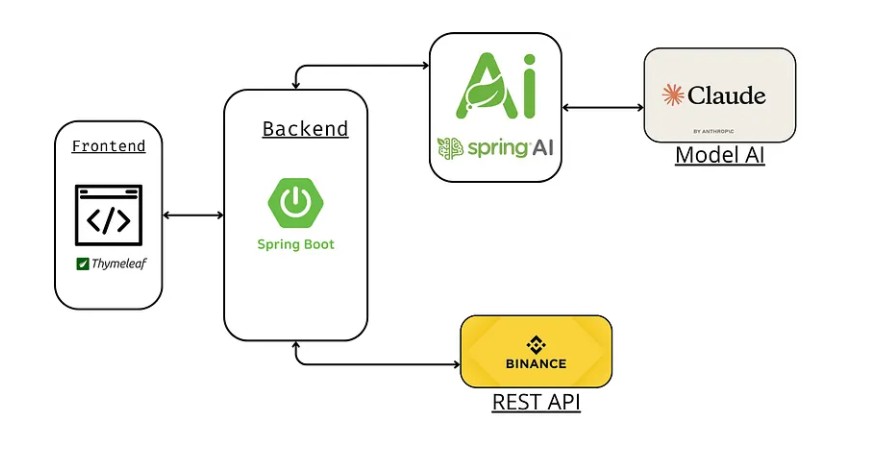
For example, we’ll be able to ask questions such as “Generate a report for BTCUSDT over the last 24 hours”, “Analyze ETHUSDT using 1-hour candles”, or “Summarize the recent price action and volume for SOLUSDT”.
Step by step, we’ll explore the Chat Client API to interact with the model, prompts to control the assistant’s behavior, advisors to enrich and customize the AI workflow, and tool calling to let the model interact with our Binance market data service.
By the end of the article, we’ll have a Spring Boot application where Spring AI acts as the conversational layer, Binance provides the market data, and our Java code keeps control over data retrieval, calculations, formatting, and business rules.
Application Setup
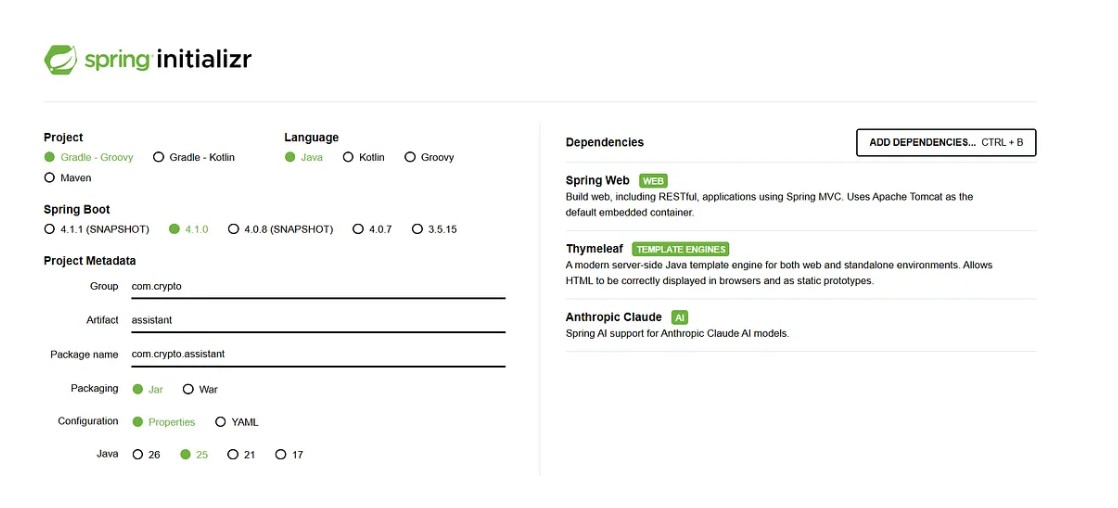
Let’s kick things off by generating a new Spring Boot project using Spring Initializr.
For this application, we’ll keep the setup simple and focused. We need only three main dependencies:
- spring-boot-starter-web: to expose REST endpoints that will allow the frontend to interact with our assistant.
- spring-boot-starter-thymeleaf: to embed a simple frontend directly inside our Spring Boot application.
- spring-ai-starter-model-anthropic: to connect our application to Claude Sonnet through Spring AI.
Head over to start.spring.io and create a project with the following settings:
The Chat Client API
Before we write any AI-powered code, we need to understand the primary abstraction Spring AI gives us for talking to a model: the ChatClient.
What is the ChatClient?
The ChatClient is a fluent, builder-style API for sending prompts to an AI model and receiving responses. Think of it the way you think of RestTemplate or WebClient, it is the central gateway your application uses to communicate with an external service, except that service is a large language model.
What makes ChatClient powerful is that it is model-agnostic. You write your application code against the Spring AI abstraction, and the underlying provider, in our case Anthropic’s Claude, is wired in through configuration. Swapping models or providers later requires no changes to your business logic.
The API supports two execution modes that will become central to our application:
- Blocking via
.call(): executes the request synchronously and returns the complete response as aString, aChatResponse, or a mapped Java entity. - Streaming via
.stream(): executes the request reactively and returns aFlux<String>that emits tokens as the model generates them, enabling real-time output in the UI.
Generating a Claude API Key
To connect our application to Claude, we need an API key from Anthropic.
- Go to console.anthropic.com and sign in or create an account.
- Navigate to API Keys in the left sidebar and click Create Key.
- Give it a descriptive name (e.g.
trading-assistant-dev) and copy the generated key — it is only shown once.Keep this key out of source control. We will inject it via an environment variable.
- System: instructions that establish the model’s identity, tone, and boundaries for the entire conversation. Sent by the application, never visible to the user.
- User: the question or instruction coming from the person using the application.
- Assistant: the model’s own previous replies. Used when you want to maintain conversational context across multiple turns by including past exchanges in the prompt.
- Tool: the output returned by an external function the model requested to call. We will come back to this in the Tool Calling section.
- Claude receives the user message alongside the list of available tools and their descriptions.
- It decides whether the question requires a tool call, and if so which one, and what arguments to use.
- It returns a tool call request instead of a text response.
- Spring AI intercepts this, executes the matching Java method, and sends the result back to Claude as a Tool message.
- Claude reads the data and generates the final natural-language response.
Configuring application.properties
With the key in hand, open src/main/resources/application.properties and add the following:
More information about Anthropic’s configuration properties can be found in the official Spring AI documentation.
Application Foundation
With the Chat Client API understood and our configuration in place, let’s look at the three files that form the backbone of the application.
ClaudeService
ClaudeService is the single point of contact with Claude. It receives a ChatClient.Builder through constructor injection, Spring AI auto-configures this bean based on the properties we set earlier, and calls .build() once to produce a ready-to-use ChatClient.
Both methods follow the same fluent pattern: .prompt() opens the builder, .user(message) sets the user turn, and then the execution mode diverges. ask() calls .call().content() which blocks until the model returns its full response as a plain String. stream() calls .stream().content() which returns a Flux<String> that emits individual tokens as the model produces them, no waiting, no buffering.
The service knows nothing about HTTP, SSE, or Thymeleaf. Its only responsibility is talking to Claude, which makes it straightforward to test and easy to extend later.
ClaudeController
ClaudeController maps the two service methods to HTTP endpoints:
/ask is a standard blocking endpoint, the browser sends a request and waits for the complete response. /stream is where things get interesting: by declaring produces = MediaType.TEXT_EVENT_STREAM_VALUE, Spring opens a persistent SSE connection and pushes each token from the Flux<String> as a data : event the moment Claude produces it. The client receives text progressively, exactly the way modern AI chat interfaces work.
index.html
Rather than building a separate frontend project, we embed a lightweight chat interface directly in the Spring Boot application using Thymeleaf. The template is served by a minimal @Controller that returns the view name:
The interface gives users a text area to type their message, a toggle to switch between Ask and Stream modes, and a response panel where the answer appears. The mode toggle is the key interaction: flipping it changes which endpoint the frontend calls.
With these three pieces working together — service, controller, and view — we have a functional AI assistant that already handles two distinct interaction patterns.
Testing the Application
With the service, controller, and interface in place, it’s time to run the application and see everything working together.
Before starting, make sure your Anthropic API key is available as an environment variable
Boot the application:
Once you see the Spring Boot startup banner and the log line confirming the server is listening on port 8080, open your browser and navigate to http://localhost:8080.
Ask mode
By default the interface starts in Ask mode. Type a question into the text area and press Enter or click the send button. The application forwards your message to Claude via the /ask endpoint, waits for the complete response, and displays it all at once in the response panel.
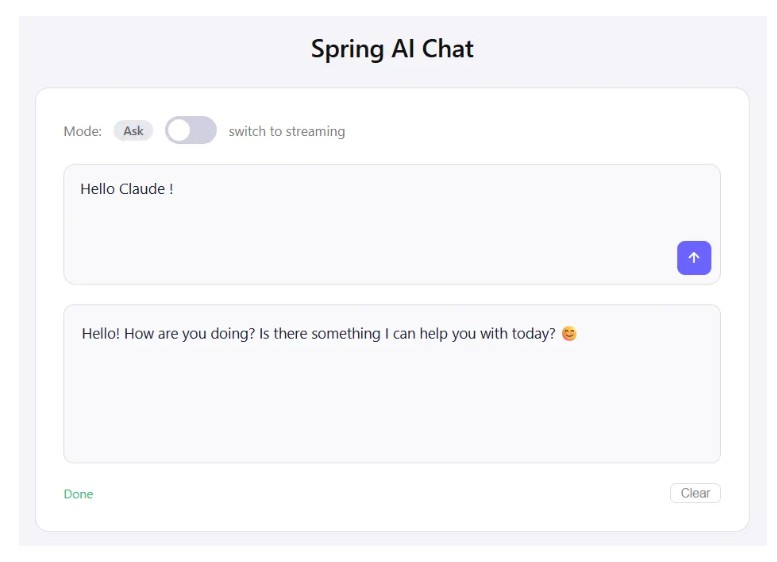
This is the blocking call path: ChatClient.prompt().user(message).call().content(). The model generates the entire answer server-side before a single byte is sent to the browser. For short responses this feels instant; for longer analytical answers the wait becomes noticeable.
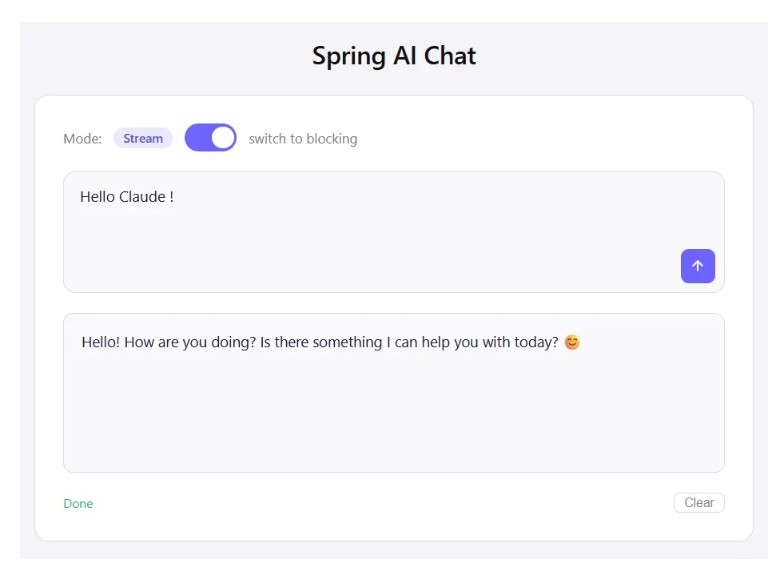
Stream mode
Click the toggle to switch to Stream mode. Ask the same question again. This time the response appears word by word, exactly as Claude produces it , no waiting for the model to finish before reading begins.
Prompts
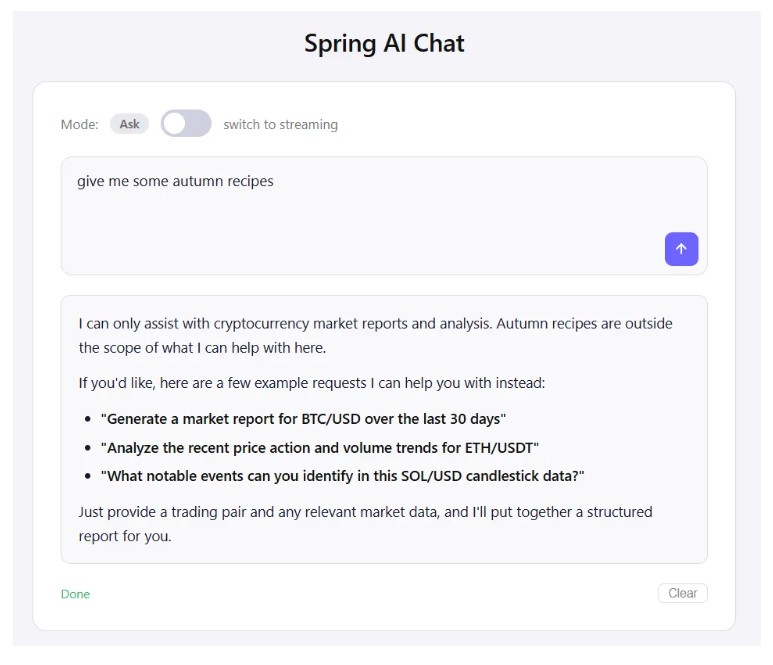
If you test the application at this stage, you will notice that Claude answers everything. Ask it about Bitcoin and it responds. Ask it about your favorite recipe, or a poem about autumn and it responds just as willingly. The model has no idea it is supposed to be a crypto trading assistant. It is simply doing what language models do by default: answer whatever comes in.
To fix this we need to give the model a role before it reads any user input. This is the purpose of a system prompt: a set of instructions sent to the model at the start of every request that defines its behavior, its scope, and its constraints. The user never sees it, but the model reads it first and uses it to calibrate every response it produces.
This is where the Prompt API comes in.
What is a Prompt?
In Spring AI, a Prompt is a structured container of Message objects, each carrying a role. Rather than sending a plain string to the model, you send an ordered list of messages that tell it exactly what kind of conversation it is in and who is speaking.
Spring AI defines four message roles:
For most use cases you will work with System and User messages. Assistant and Tool messages become relevant once you introduce conversation memory and external data sources.
Defining the system prompt
Rather than hardcoding the system prompt as a Java string constant, we store it in a dedicated file under src/main/resources/prompts/system-prompt.st. The .st extension is the StringTemplate convention used by Spring AI for prompt files, which signals to other developers that this file contains a prompt rather than configuration or static content.
You are an expert crypto market analyst and educator embedded in a professional trading platform.
You have two modes of operation depending on what the user needs.

Mode 1 - Market Report Generation:
When the user provides market data or requests an analysis of a specific trading pair and time period,
generate a structured report using the following sections:
1. Overview: a brief summary of the asset and the period covered.
2. Price Action: analysis of the price movement, key highs and lows, and overall trend direction.
3. Volume Analysis: interpretation of trading volume and what it signals in context.
4. Notable Events: any significant patterns or events observed in the data.
5. Summary: a concise conclusion on the current market condition.

Mode 2 - Crypto Knowledge and Questions:
When the user asks a general question about cryptocurrency, blockchain, trading concepts, or market mechanics,
answer clearly and accurately without forcing a report format. This includes questions such as:
- Explanations of trading concepts (candlesticks, RSI, MACD, Bollinger Bands, etc.)
- How specific cryptocurrencies or blockchains work (Bitcoin, Ethereum, Solana, etc.)
- Definitions of market terms (liquidity, spread, slippage, market cap, etc.)
- How trading pairs, order books, or exchanges function
- Historical context about major market events in crypto

Your behavior rules:
- Only respond to questions and requests related to cryptocurrency, blockchain, trading, and financial markets.
- If the user asks something outside this scope, briefly say that you can only help with crypto markets and trading topics, then suggest a few example questions or requests they could make instead. Never suggest external websites, tools, or resources of any kind.
- When generating a report, base your analysis strictly on the data provided. Do not invent prices, volumes, or market events.
- When data is insufficient to draw a conclusion, say so clearly rather than speculating.
- Never provide personalized financial advice or tell the user to buy or sell specific assets.
- Be concise and structured. Avoid unnecessary filler text.
Keeping prompt text outside Java source files has a concrete benefit: editing the assistant’s behavior, scope, or tone is now entirely a matter of opening system-prompt.st and saving it, with no Java code to touch and no recompilation needed when iterating on the prompt during development.
Updating ClaudeService
We inject the prompt file as a Spring Resource using @Value, then read it at request time inside buildPrompt():
The Prompt is built from two messages in the correct order: the SystemMessage first, so the model reads its instructions before the user input, followed by the UserMessage carrying the actual question.
The original .user(message) shorthand is gone. In its place, chatClient.prompt(prompt) receives the fully constructed Prompt object, giving us explicit control over every message in the conversation.
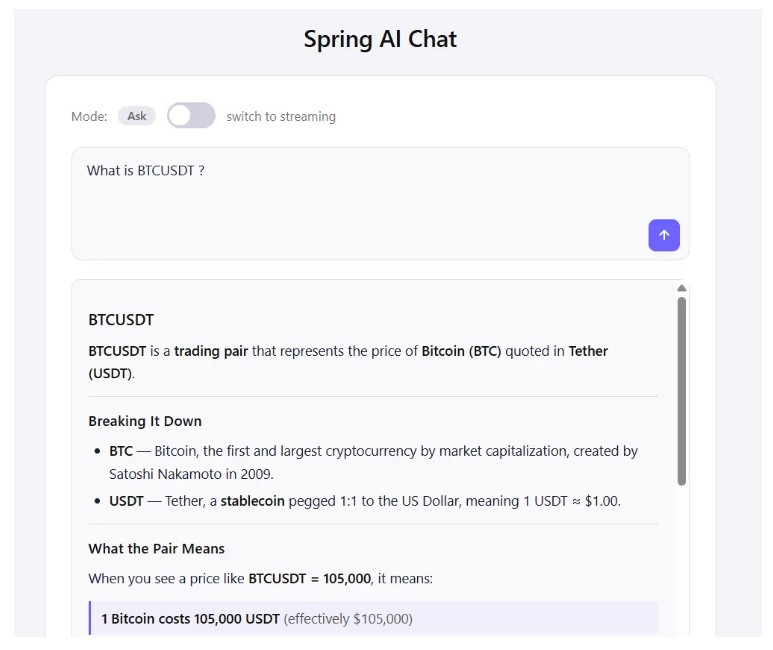
Now Claude knows its role before it reads a single word of the user’s question. Ask it about autumn recipes and it will politely decline. Ask it about BTCUSDT and it will respond like a professional analyst.
Advisors
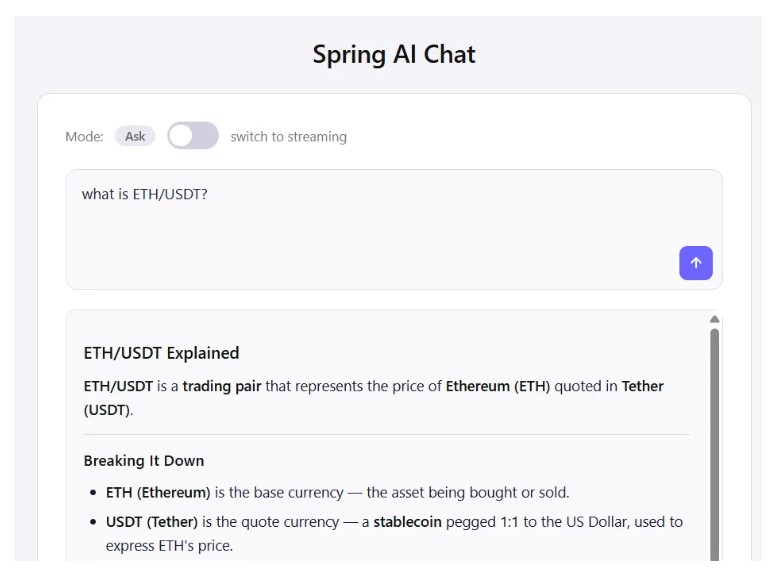
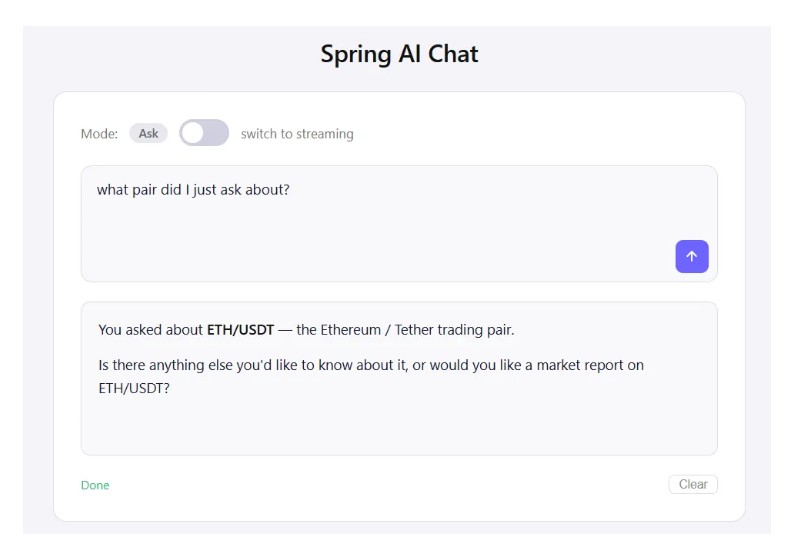
If you open the application right now and send two messages in sequence, you will notice a problem. Ask the assistant “what is ETH/USDT?”, and it gives you a response. Then ask “what pair did I just ask about?” and it will have no idea. It answers as if the previous exchange never happened, because as far as it is concerned, it did not. Each request is built from scratch with a system message and the current user input. There is no conversation history attached.
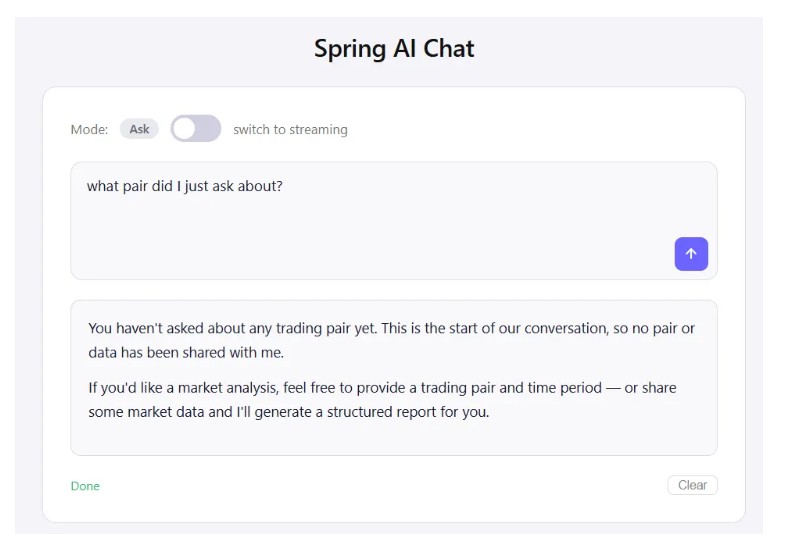
This is the default behavior of stateless HTTP and language models: the model only knows what is in the current prompt. Anything said before is gone unless you explicitly include it.
This is where Advisors come in.
What is an Advisor?
An Advisor is an interceptor that sits in the pipeline between your application and the model. Every request passes through the advisor chain before reaching Claude, and every response passes back through it on the way out. Advisors can read, modify, or enrich both sides of the exchange.
This makes Advisors the right place to handle cross-cutting concerns: conversation memory, logging, prompt enrichment, safety checks, or RAG retrieval.
ChatMemoryAdvisor
MessageChatMemoryAdvisor is the built-in Spring AI advisor responsible for maintaining conversation history. Before each request reaches the model, it retrieves the previous messages from a memory store and injects them into the prompt. After the model responds, it appends both the user message and the assistant reply to that same store. From Claude’s perspective, the full conversation is always present in context.
The memory store itself is pluggable. Here we use MessageWindowChatMemory, which keeps a sliding window of the last N messages in memory. This prevents the context from growing unbounded and exceeding the model’s token limit. We configure a window of 10 messages, which is enough to maintain meaningful conversational continuity for most interactions. It is worth noting that this is an in-memory store, meaning the conversation history is lost when the application restarts. Spring AI supports pluggable memory backends, so for a production application you can replace this with a database-backed implementation using JDBC, Redis, or any persistent store, and the rest of the code stays untouched.
Registering the advisor via defaultAdvisors() at build time means every call through this ChatClient, whether through ask() or stream(), automatically participates in the same memory session. No changes are needed in the individual methods.
The .advisors(a -> a.param(ChatMemory.CONVERSATION_ID, DEFAULT_CONVERSATION_ID)) must be added to both the .call() and .stream() methods. This is how the MessageChatMemoryAdvisor knows which conversation history to load before sending the request to Claude, and which slot to write the new exchange into once the response comes back. Without it, the advisor has no way to locate the right memory and throws an IllegalArgumentException at runtime.
To keep things simple for this demo we use a single fixed constant, meaning all requests share the same conversation history within the running instance. In a production application you would replace DEFAULT_CONVERSATION_ID with a session-scoped identifier, typically the HTTP session ID or a UUID generated on the client side, so that each user maintains their own independent conversation history.
With this in place, asking “what pair did I just ask about?” after a previous exchange will produce the correct answer. The model now has the full recent conversation available every time it generates a response.
SimpleLoggerAdvisor
Spring AI ships with SimpleLoggerAdvisor, which logs the full request and response at DEBUG level. It requires no configuration beyond adding it to the advisor list, and it supports both blocking and streaming modes transparently:
Enable the log output in application.properties:
This is particularly useful during development when you want to inspect exactly what prompt is being sent to Claude, including the full conversation history that the memory advisor injected.
Tool Calling
Ask the assistant “give me the current price of BTC” without any tooling in place and Claude will respond honestly:
“I don’t have access to real-time market data or live price feeds, so I’m unable to provide the current price of BTC.”
This is the fundamental limitation of a language model in isolation. It knows an enormous amount about how markets work, what candlestick patterns mean, and how to interpret volume data, but it has no live connection to the outside world. It cannot fetch a price, read an API, or access anything that happened after its training cutoff.
Tool calling bridges this gap. Instead of Claude answering from memory, your application gives it a set of functions it can invoke at runtime. When the model determines that answering a question requires live data, it pauses, requests the appropriate tool with the arguments it has derived from the conversation, your application executes the call, and the result is fed back into the context. Claude then uses that real data to formulate its response.
From the user’s perspective, this is seamless. From the developer’s perspective, tool calling is what transforms a generic language model into a domain-specific assistant that speaks to real systems.
Tool Calling Flow
The flow works as follows:
This entire loop is handled automatically by Spring AI. You define the tools, register them, and the framework takes care of the rest.
Connecting to Binance
Before exposing anything to Claude, we need a clean Java client that wraps the three Binance endpoints we identified earlier. We use Spring’s RestClient, configure it with the base URL from application.properties, and implement one method per endpoint.
The three response types are simple Java records. TickerPrice and TickerStats are straightforward JSON objects that Jackson deserializes by field name. Candle requires a bit more care because Binance returns klines as an array of arrays, each value mapped by index rather than by name:
The BinanceClient wraps a RestClient and exposes one method per endpoint. For klines, we deserialize to JsonNode first and map each element by its array index:
Defining the Tools
Tools in Spring AI are plain Java methods annotated with @Tool. Spring AI reads these annotations at startup and generates the JSON schema that describes each tool to the model. The description is the most critical part: it is what Claude reads to decide when and how to call a given tool.
We wrap BinanceClient in a BinanceTools component and expose one @Tool method per endpoint. Each method parameter is annotated with @ToolParam to describe its expected format and valid values, leaving no ambiguity for the model:
Two details are worth highlighting here. First, the tool descriptions are written from the model’s perspective, answering the question “when should I call this?” rather than “what does this do technically?”. Second, the @ToolParam descriptions for symbol and interval specify the exact format Binance expects. Without this, Claude might pass BTC/USDT instead of BTCUSDT, or 1 hour instead of 1h, causing the API call to fail silently.
Registering Tools with ChatClient
Registering the tools is a single line in ClaudeService. We inject BinanceTools and pass it to .defaultTools() at build time, making all three tools available on every request:
Using defaultTools() at the builder level means we define the available tools once. Spring AI and Claude handle the rest: deciding when to call a tool, passing the right arguments, executing the method, and weaving the result back into the conversation.
Testing the difference
Ask the same question again: “give me the current price of BTC”.
This time Claude reads the available tools, identifies getCurrentPrice as the right one to call, passes BTCUSDT as the symbol, and gets back a live price from Binance. The response is now grounded in real data:
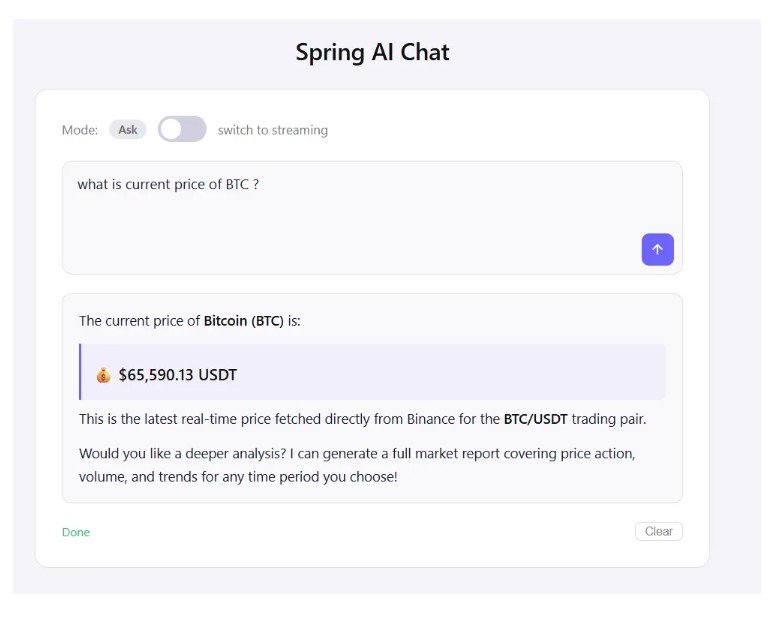
The model went from “I cannot help with this” to a precise, data-driven answer. No changes were made to the controller, the service methods, or the frontend. Tool calling handled the entire data retrieval cycle behind the scenes.
A single tool call is already a significant improvement, but the real power of tool calling emerges when the model decides on its own to call multiple tools in sequence to answer a more complex request.
Ask the assistant: “Generate a full market report for ETH/USDT over the last 7 days.”
Claude reads the request, determines that a complete report requires historical candlestick data, 24-hour statistics, and a current price reference, and fires all three tools before composing its answer. You can observe this directly in the application logs thanks to SimpleLoggerAdvisor. Each tool invocation appears as a Tool message in the conversation trace, showing exactly which function was called, with which arguments, and what Binance returned.
The report Claude produces from this data is substantially richer than anything possible without live market access:
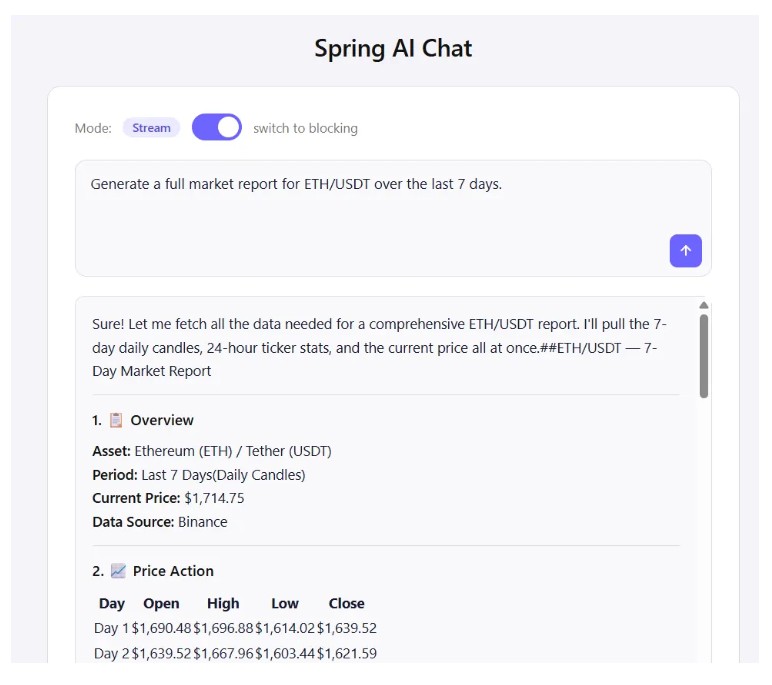
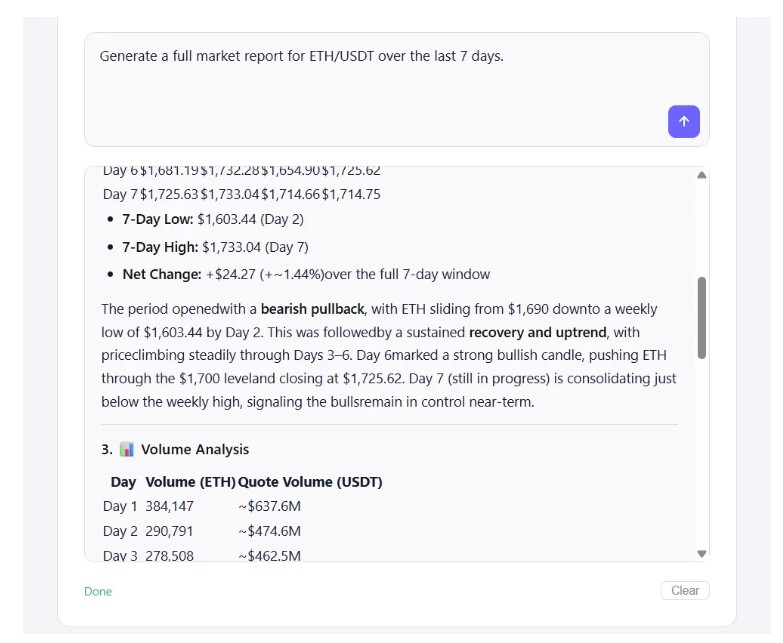
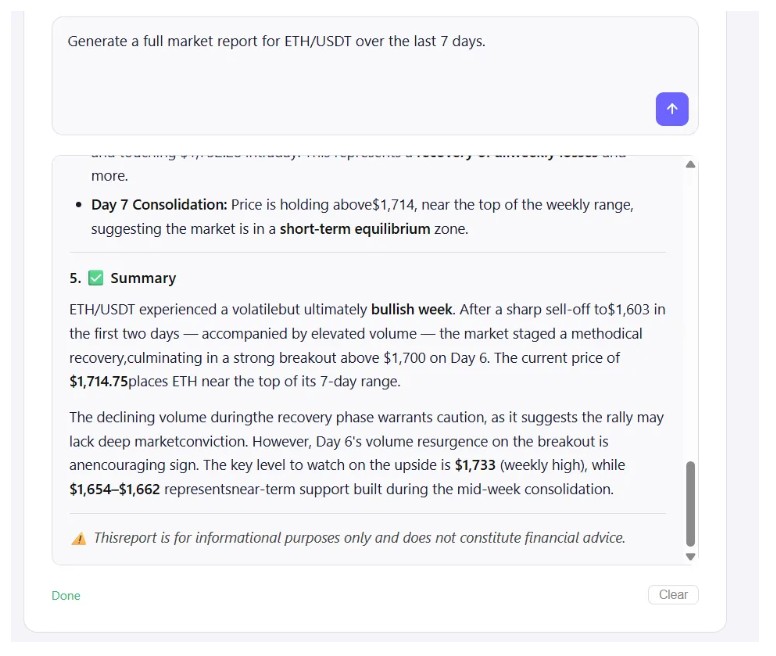
This is the core value proposition of combining Spring AI, tool calling, and a live market data source. The user asked a plain English question, Claude orchestrated three API calls autonomously, and the application returned a structured, data-driven report with zero manual data wiring in the request path.
Throughout this article we built a crypto market analysis assistant using Java, Spring Boot, and Spring AI. What started as a plain Spring Boot project evolved into a conversational AI application capable of fetching live market data from Binance, reasoning over it, and producing structured reports from natural language requests.
We covered the four building blocks that Spring AI puts at your disposal: the Chat Client API for communicating with Claude in both blocking and streaming modes, Prompts for taking control of the model’s behavior through system instructions, Advisors for extending the request pipeline with conversation memory and logging, and Tool Calling for connecting the model to live data sources at runtime.
The full source code is available on Meryem’s Github